Matcha Flavoured Companion Mod (26.3)
Matcha Flavoured Companion Mod adds texture choices, a Creative catalogue and built-in JEI for Matcha Flavoured. It lets you switch each block, mob and item between Matcha and Vanilla looks. The mod also gives you a much larger advancements window. It runs on the client side, so the server does not need it.
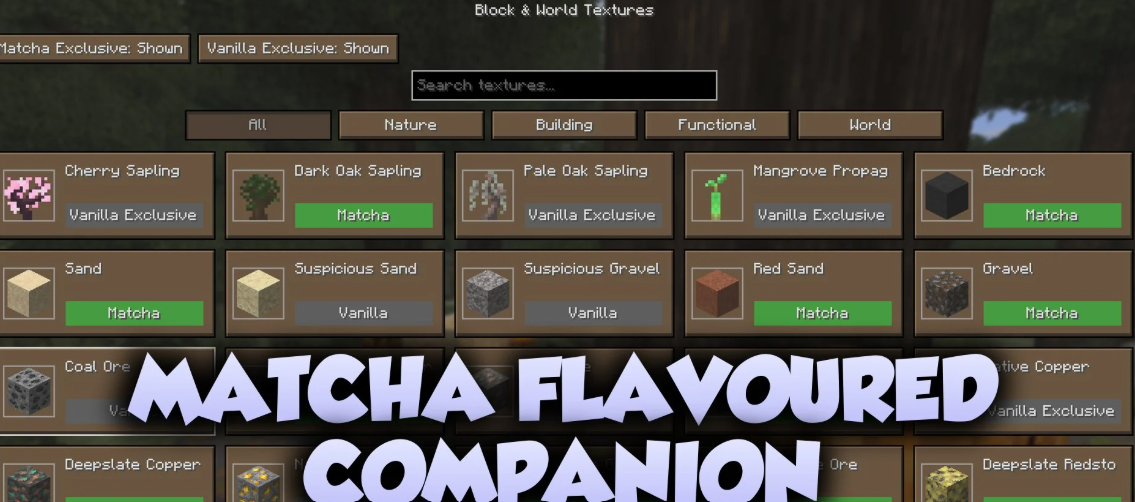
Features:
- Individual visual choices: switch modified blocks, world objects, mobs, items, tools, weapons and armour between Matcha and Vanilla looks.
- Built-in JEI: search Matcha items and browse recipes with Matcha-themed buttons. A separate standalone JEI install is not needed.
- Expanded advancements: opens a big advancement window with Matcha styling. Press L to open it.
- Creative catalogue: adds finished Matcha item variants to the normal Creative tabs, with their names and models.
- Automatic per-world detection: picks the right Matcha version for each world and remembers it.
- Lets you compare Matcha and Vanilla previews in searchable texture browsers before you save.
- Shows an animated Applying textures screen with real progress and brown Matcha buttons, instead of the red Mojang screen.
- Includes presets such as All Matcha or Vanilla Visuals + Matcha Custom Content. You can also create, rename, import and export your own.
- Lets you control HUD, containers, Creative and recipe-book screens, advancements and widgets separately.
- Adds a Matcha blossom button to the title and pause menus. You can also open settings from Mod Menu.
- Offers an optional shortcut that skips the experimental-world warning linked to the datapack.
- Works with Matcha 1.03, 1.12, 1.12.5 and 1.12.7-beta. One Companion file covers all of them.
- Uses the enabled world datapack first if you also have the Matcha mod installed. Different worlds can use different Matcha versions.
- Keeps your own resource packs on top of its visual layers.
- Leaves your worlds and gameplay datapack untouched.
How to Use:
- Click the Matcha blossom button on the title or pause menu. You can also open settings from Mod Menu.
- Check the settings page to see which Matcha version and source the mod found.
- Open a texture browser and compare the Matcha and Vanilla previews.
- Click Done to save and apply your choices right away. Click Cancel to throw away changes you did not confirm.
- Click Save Changes to apply the other settings you changed.
- Press L in a world to open the larger advancements window.